
Buckle up, friends. I’ve had a couple good naps, and so we’re diving into a really amazing Make.com workflow that will create all your social media ideas from a single email you send to kick it off.
Yup. One email with something like, “Setup 30 days of posts leading up the launch of [insert book name here] on November 30.
What you get back is a glorious table of campaign ideas with objectives, content types, calls-to-action, hooks, voice/tone guides, and image generation prompts for Facebook, Instagram, and Pinterest.
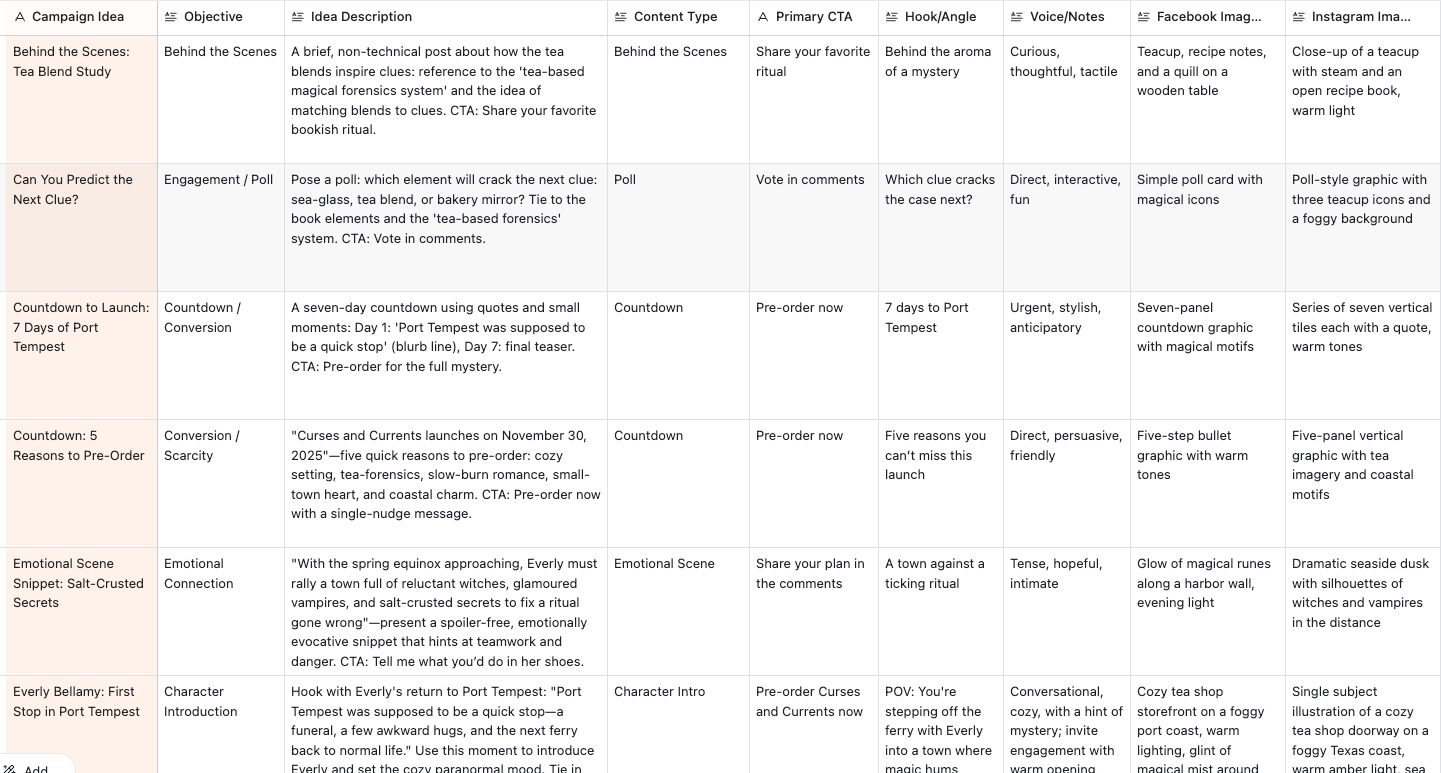
Here’s what you’re going to need:
-
Airtable
-
Make.com with a connection to an LLM (ChatGPT 5.1 is exceptionally good at this)
-
Email
Grab Some Coffee and Plan for Two Hours Setup Time
If you’re fast with automation setups, it might be less. It depends on how quick you are with Airtable, actually.
And like with all walkthroughs, let me say that this is how I do it because I love Airtable, and in the next step after generating all these ideas, I unleash the next workflow that actually CREATES these social media campaigns with images, pull quotes, and captions.
Is this AI Slop? Nope. And here’s why.
Two weeks ago, I gave you a tool to use (https://brandguide.authorautomations.com). I know we all went to Author Nation and zoned out for a week, but in case you forgot, we built your author brand, copy, and social media guidelines so AI could finally stop sounding like a committee of beige marketing interns all hopped up on emojis and start sounding like you.
This week, we wire all of that into an actual system.
The video in this issue walks through exactly how I plug those guidelines into Airtable and Make.com so that one email turns into 30+ social media ideas that match your voice, your books, and your readers.
Think of this as Part Two of the series:
-
Part One: Train the robot brain to sound like you.
-
Part Two (today): Give it context and structure so it knows what you write, who you write for, and where that content should go.
-
Part Three (next): Turn those ideas into finished captions, images, and scheduled posts.
You already did the hard emotional work of deciding who you are on the page. Now we make it reusable.
🔧 What You’ll See in the Video
Here’s what I walk through on screen, so you know what you’re looking at when you hit play.
Inside the video, I show you how to:
-
Take the three guides you created with the free Author Brand Guide Builder
(brandguide.authorautomations.com) -
Store them as reusable brand assets in Airtable
-
Connect those assets to specific books
-
Use Make.com to pull everything together, call an LLM, and generate 30+ on-brand social ideas in one run
By the time the video ends, you have:
-
A reusable Airtable base that holds your brand, book details, and social campaign ideas
-
A Make.com scenario that listens for an email and builds a full social campaign from it
-
A clear next step: review, tweak, and approve your 30 ideas instead of reinventing the wheel every time you launch a book
Then use the sections below as your written walkthrough.
🗂 Step 1: Parking Your Brand Guides in Airtable
First up in the video: Airtable.
You’ll see me create a table called Brand Assets. This is where your three core guides live:
-
Brand guidelines
-
Copywriting guidelines
-
Social media guidelines
Each one becomes a record. I paste the full text of each guide into a long text field called something like notes and add fields for:
-
Pen name
-
Type (brand, copywriting, social)
-
Last generated date
This means the time you spent filling out the brand guide builder now has a home base. Any automation that needs “how I talk,” “how I look,” or “how I show up online” can pull from these three records instead of you re-explaining yourself every single time.
📚 Step 2: Giving Your Books Real Context
Next in the video, I build a Book Details table.
This is where you teach the system what each book is about, beyond just a title and a cover. The fields I use:
-
Book title – long text
-
Pen name – long text
-
Series name – single select or dropdown
-
Audience & genre – long text
-
Tone and mood – long text (cozy, eerie, hopeful, snarky, etc.)
-
Tropes – multiple select (to avoid misspelling “reunited lovers” twelve different ways)
-
Setting – long text (for me: “Port Tempest, a magical barrier island off the Texas coast…”)
-
Protagonist names – multiple select
-
Blurb – long text
-
Book cover – attachment
-
Reference images – attachments (vibe images, aesthetic references)
-
Manuscript file – attachment (Word doc, if you want to get fancy later)
Then I connect Book Details back to Brand Assets with a linked record:
-
Field:
Style Guide→ Link to another record → Brand Assets -
Allow linking to multiple records
-
Add a lookup field that pulls in the
notesfrom Brand Assets
In the video, you’ll see me select all three guides (brand, copy, social) so each book ends up with one giant “style bundle” attached to it. From the LLM’s perspective, this becomes a very rich prompt: who you are, what the book is, who it’s for, and how you want to sound.
🧩 Step 3: Building Your Social Planner Table
Now that Airtable knows your brand and your books, we give it a place to store campaign ideas.
That’s the Social Planner table. This is the star of the walkthrough.
Fields I set up there:
-
Campaign idea– short title (single line text) -
Objective– long text (what this post is trying to do: social proof, fomo, connection, etc.) -
Idea description– long text (detailed concept) -
Content type– long text (quote graphic, behind-the-scenes video, trope tease, poll, etc.) -
Primary CTA– long text (how you ask the reader to act, in your voice) -
Hook / angle– long text (the scroll-stopping first line or framing) -
Voice notes– long text (this is about tone of this piece, not audio dictation) -
Image guidance– long text (visual direction for cover, AI art, or designer) -
Status– single select with options like:-
Starting point
-
Review and choose
-
Ready for images
-
Ready to post
-
Then I wire in more context with lookup fields:
-
Book– link to Book Details -
Social profiles– link to a Social Profiles table -
Lookup fields that pull in:
-
Book reference images
-
Book blurb
-
Pen name
-
Book title
-
Brand asset notes
-
You’ll see this in the video: I change one linked field (select the book), and all the other context fills in automatically via lookups. That’s the whole point. One click ties that campaign idea to the right book, the right brand voice, and the right visuals.
🌐 Step 4: Mapping Your Social Profiles
Quick supporting player: the Social Profiles table.
In the video I show a simple list:
-
TikTok
-
Instagram
-
Facebook
-
Facebook (Direct2Readers)
-
YouTube
-
LinkedIn
-
Threads
-
Bluesky
-
Pinterest board
-
Reddit
-
Twitter
You can add whatever you actually use. The important part is that Social Planner has a linked field pointing to this table, so each campaign idea can say “this goes to TikTok and Instagram” or “this one is LinkedIn-only.”
Once you’ve selected a set of profiles for one row, you can copy that selection and paste it down the whole column if you want everything to go everywhere.
⚙️ Step 5: The Make.com Scenario That Ties It Together
Once Airtable is set up, the video moves over to Make.com.
Here’s the flow you’ll see:
-
Webhook module
-
Make gives you a special email address.
-
You send an email to that address with your campaign request in the body.
-
Example:
-
“Create a 30-day launch campaign for Curses and Currents on November 30.”
-
Airtable – Search Records (Brand Assets)
-
Pulls in your three guides from the Brand Assets table.
-
Uses a view filtered to records whose
namecontains “guidelines,” so it can ignore things like API keys or extra assets you stash there.
-
-
Array Aggregator
-
Bundles those three records into one clean structure that can be fed into the LLM.
-
-
Chat Completion module (GPT-5 in the video)
-
System prompt tells it:
-
You are a senior book marketing strategist
-
Use platform algorithms, reader psychology, and campaign patterns
-
Return only JSON, no prose, and follow a strict schema
-
-
Inputs include:
-
Brand guidelines text
-
Copywriting guidelines
-
Social media guidelines
-
Book title, series, tropes, tone, setting, audience, protagonist names
-
Blurb, cover, reference images
-
The email text you sent to the webhook (your objective)
-
-
The instructions tell it to:
-
Generate exactly 30 campaign ideas (it occasionally overachieves, which I show)
-
Cover a structured arc: awareness, connection, engagement, conversion, celebration
-
Stick to your voice and preferences from the brand guides
-
Output an array of objects with fields that match your Social Planner columns
-
-
-
Iterator
-
Takes that JSON array and loops through each campaign idea one by one.
-
-
Airtable – Create Record (Social Planner)
-
For each idea, it writes:
-
Campaign idea →
Campaign idea -
Objective →
Objective -
Idea description →
Idea description -
Content type →
Content type -
Primary CTA →
Primary CTA -
Hook / angle →
Hook / angle -
Voice notes →
Voice notes -
Image guidance →
Image guidance -
Status →
Starting point
-
-
It also links back to the right book and, if you add that extra record ID trick, to the right brand assets.
-
By the end of the run, the Social Planner view fills with 30+ rows of fully scoped social post ideas, all pre-tagged with the right book, tone, and brand voice.
You move from “blank calendar” to “curated menu.”
🧱 What This System Actually Buys You
By the time you finish watching (and copying) what I do in the video, you have:
-
One place where your brand voice lives (Brand Assets)
-
One place where your book details live (Book Details)
-
One place where your platforms live (Social Profiles)
-
One place where your campaign ideas land (Social Planner)
-
One automation that:
-
Listens for an email
-
Pulls in all that context
-
Asks AI, in your own words, to build a strategic 30-day campaign
-
Stores every idea in a structured, reusable way
-
You still approve and edit everything. You still decide what feels right, what crosses a line, and what aligns with how you want to show up online. You are not handing over your voice. You are building a system that remembers it.
🔜 What Comes Next
This issue and video focus on idea generation and structure.
Next up in the series:
-
Turning those rows into finished captions and image prompts
-
Generating assets and copy automatically
-
Sending them into your scheduler so “post every day” becomes a background process instead of a daily guilt trip
If you want to skip the build-from-scratch part:
-
The Airtable base and Make.com JSON are available in the Author Automations Hub at
hub.authorautomations.com. -
Paid subscribers can download and import them directly, then just swap in your own brand guides and books.
For now, watch the video, pause often, and build along with it. Your future, less-frazzled self will be very happy you spent an afternoon setting this up.